First to clear the rack
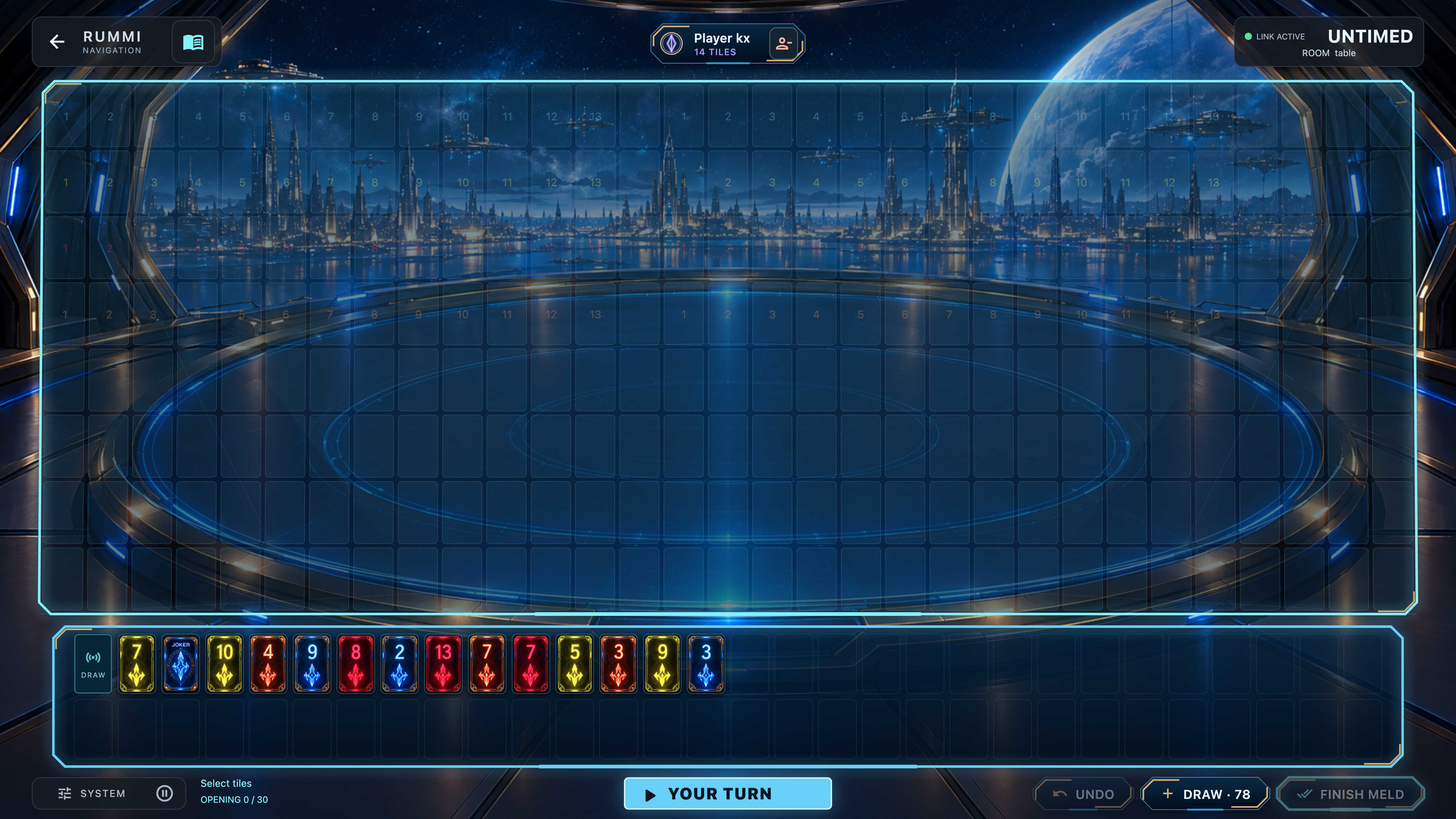
Start with 14 tiles. Meld them all to win. There are 106 tiles for 2–4 players and 160 for 5–6.
Game rules & player guide
A game of runs, groups and possibilities.
Bring your devices together. Play on one local
network.
Learn to play
Build runs and groups, rearrange the table, and be the first to clear your rack. These are the rules you’ll find in Rummi’s in-game guide.
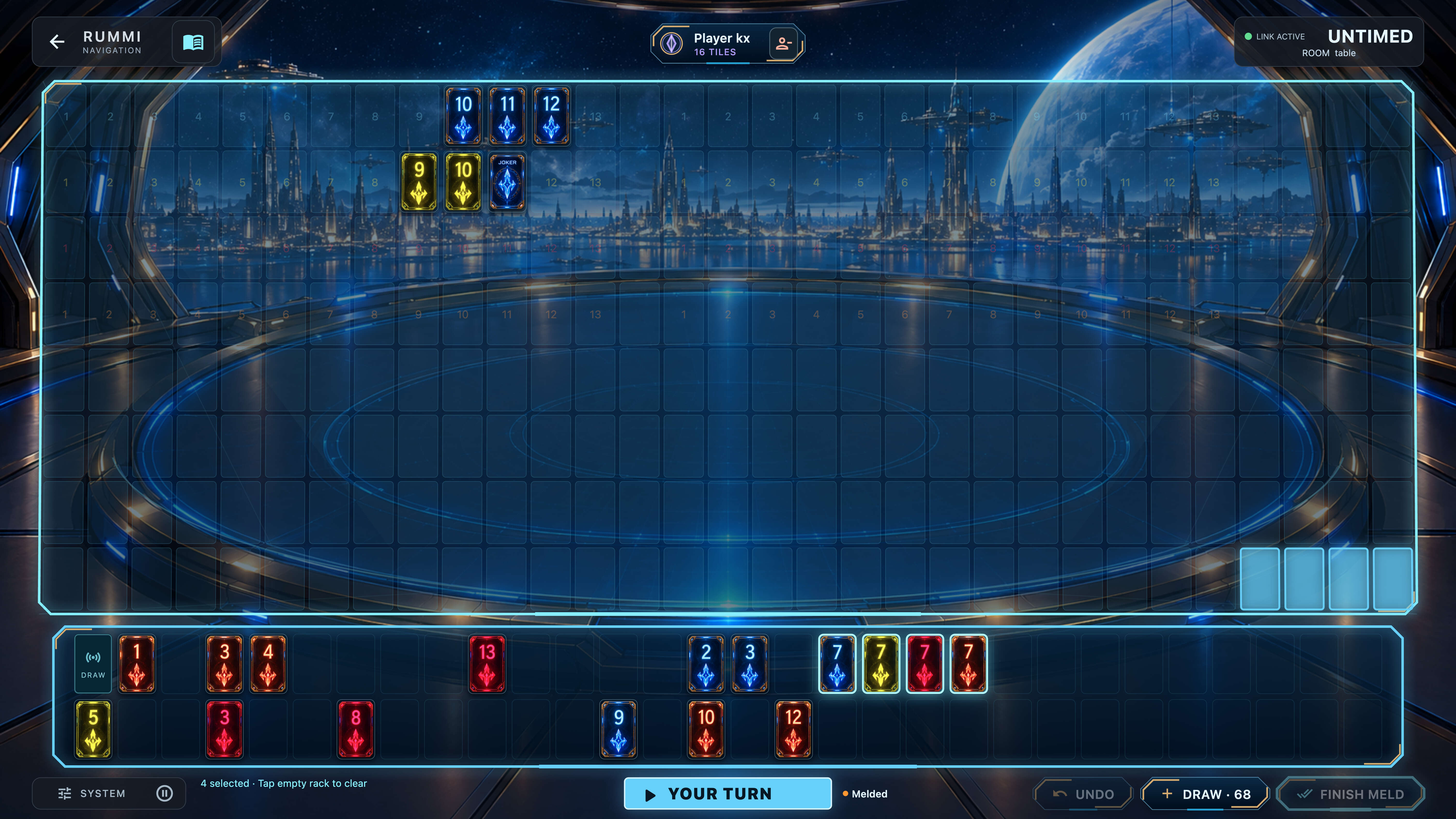
There are two boards or racks in this game: one is private, only visible to the player, and another
public board visible to all players.
Start with 14 tiles. Meld them all to win. There are 106 tiles for 2–4 players and 160 for 5–6.
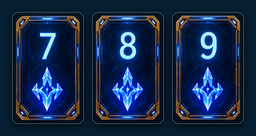
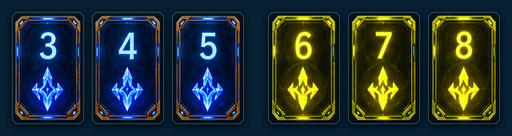
Three or more consecutive numbers of one colour. Numbers run from 1 to 13; 13 cannot wrap to 1.
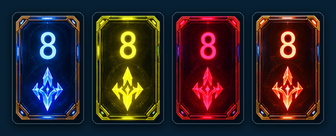
Three or four tiles of the same number, all in different colours.
Use only your rack to make one or more complete runs or groups worth at least 30 points together. Every selected tile must fit.
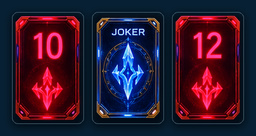
A joker replaces a missing tile and scores its represented value in a meld. A meld cannot contain only jokers.
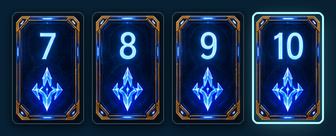
Add to or rearrange public melds. Play at least one rack tile, keep all public tiles on the board, and leave every meld valid.
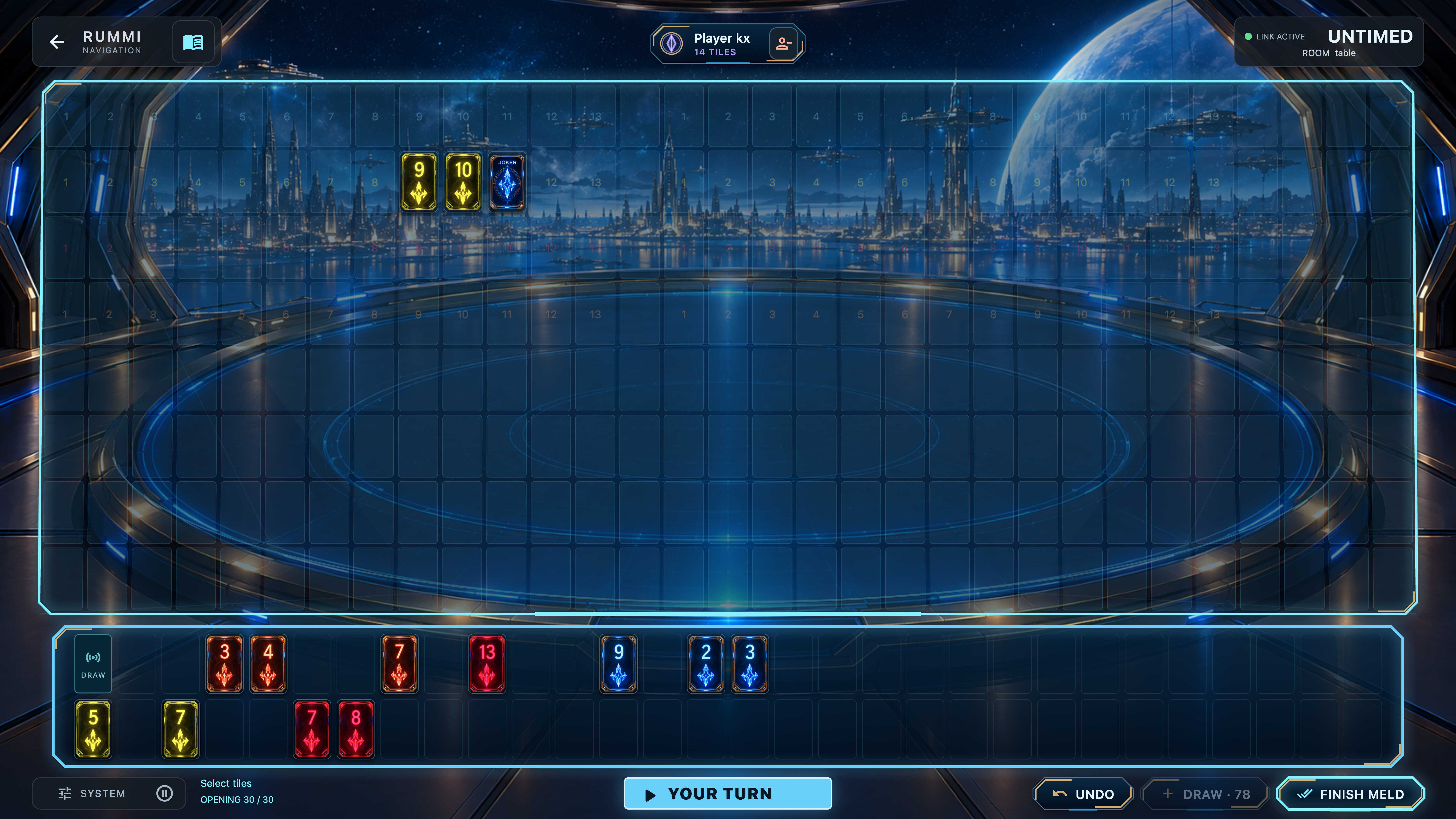
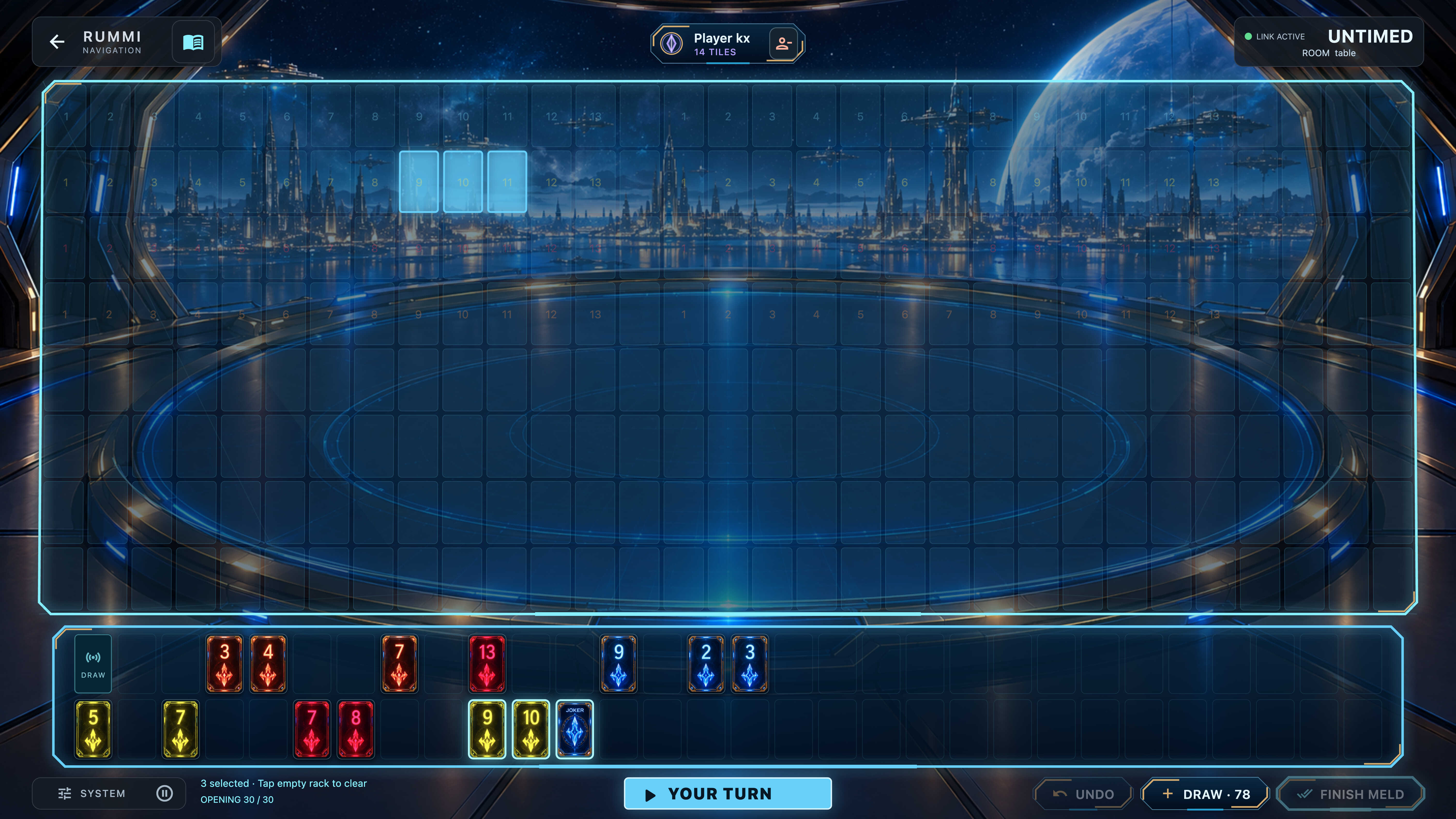
Select tiles, then drop on highlighted board cells or use Meld in full-rack mode. Finish meld confirms your play and ends your turn.
Draw takes one tile and ends your turn. Undo cancels unfinished changes. Draw is disabled during an unfinished meld; undo it first.
When time runs out, unfinished changes are undone, a tile is drawn if available, and the turn ends.
If the pool is empty and everyone passes, the lowest rack score wins. Numbered tiles score their face value; each remaining joker scores 30.
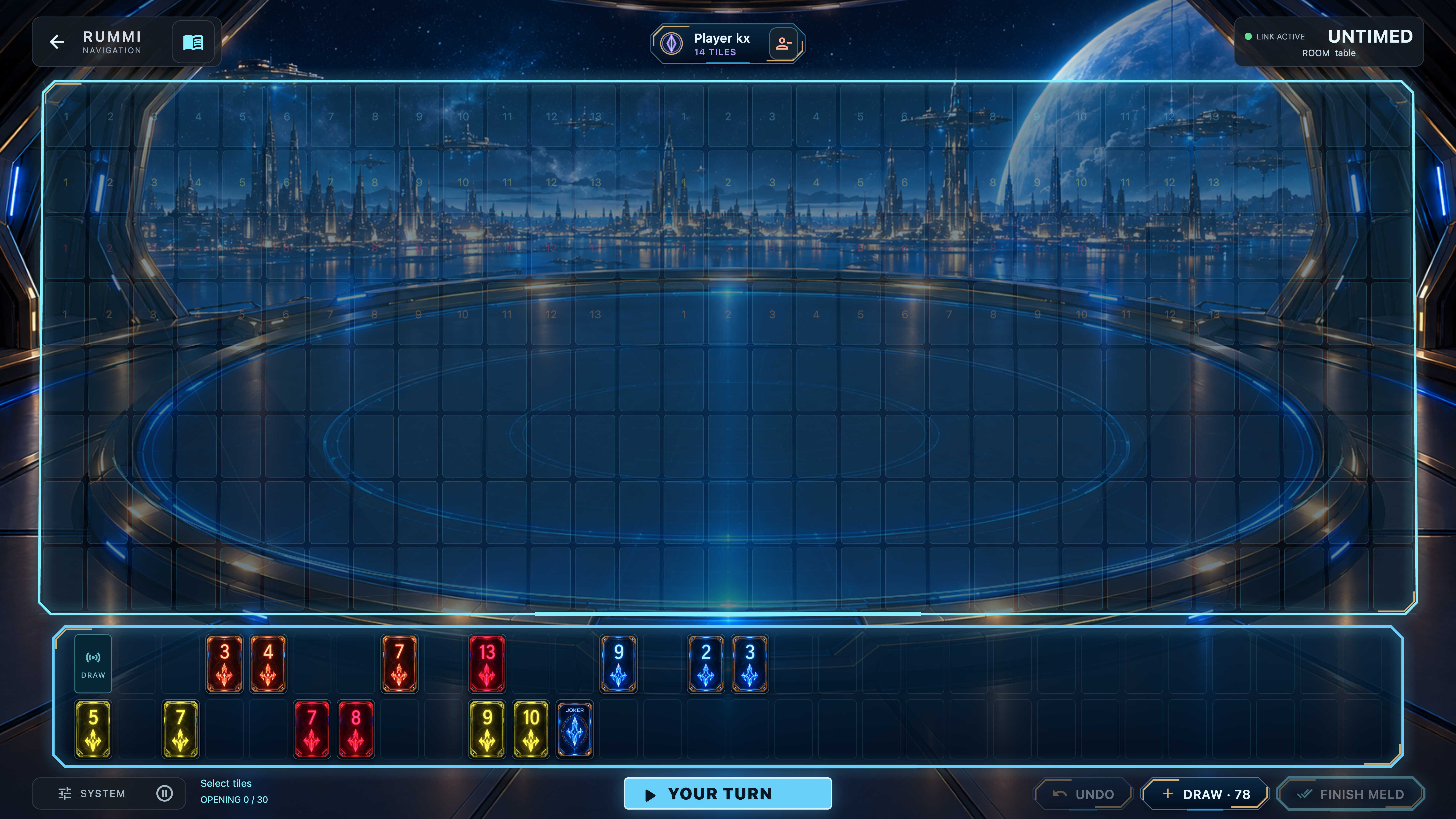
Views of the game
Connect your table
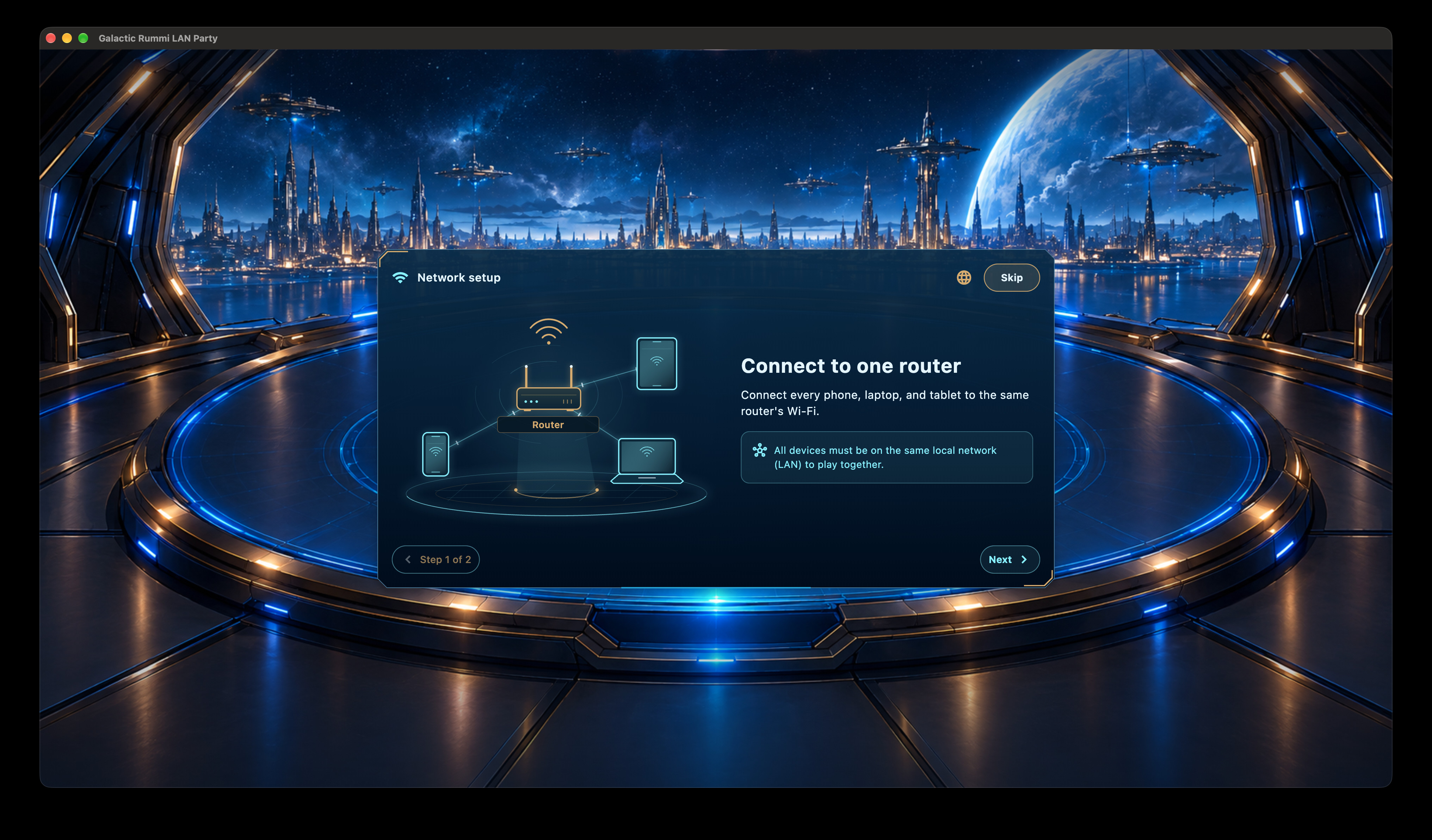
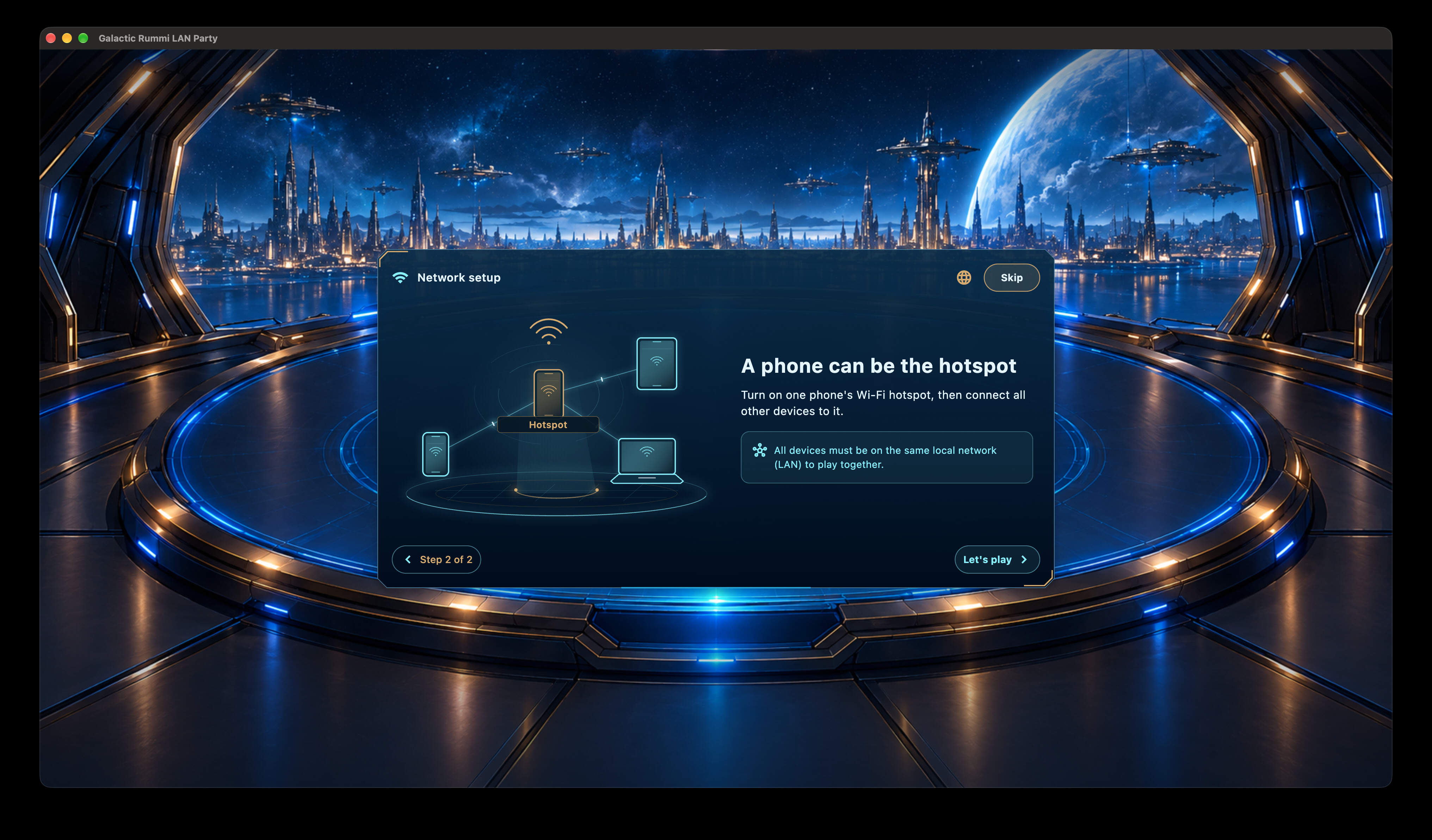
Every device must be on the same local network (LAN). Connect through a router or use one device’s Wi-Fi hotspot.
Being connected to the internet is not enough. All players must share a network that allows their devices to communicate with one another.
Join the same Wi-Fi network. A wired computer can also play when it is connected to the same LAN.
One device creates the Wi-Fi hotspot. Every other player joins that hotspot using its name and password.
Use your router’s main network, or create one Wi-Fi hotspot.
Join the same network name. The device creating a hotspot is already part of that network.
Allow local network access, open the lobby, and have one player host the game.
Choose your platform for permissions, Wi-Fi sharing and joining instructions. Menu names can vary by system version.
Keep the firewall enabled. An exception for Rummi is preferable to opening ports manually. Managed computers may require your administrator to allow the game.
Windows Mobile hotspot shares an existing Wi-Fi, Ethernet or cellular connection. Availability depends on your adapter and Windows configuration. If no shareable connection is available or Windows cannot enable the hotspot, use a router or a phone hotspot instead. Sharing cellular data may use your data allowance.
Keep the firewall enabled. Approve Rummi's incoming-connections prompt if it appears. On older macOS versions, the Local Network permission panel may not be present.
Use a separate incoming connection, such as Ethernet, for this setup. A Mac connected only through its built-in Wi-Fi should join the router or a phone hotspot instead of relying on that same Wi-Fi interface to create another Wi-Fi network.
Allow a Local network or Nearby devices request from Rummi if one appears. Permission names depend on your Android version and app build; some versions have no separate local-network switch.
If you use an app-specific network control or a VPN firewall, permit Rummi’s local-network traffic there too.
Availability and connection limits vary by phone and carrier. Tethering may use mobile data or incur carrier charges.
Some phones can share an existing Wi-Fi connection; others share cellular data.
On iOS 14 and iPadOS 14 or later, allow Rummi’s request to find and connect to devices on your local network.
If a VPN or device-management policy filters local connections, allow local-network access through that policy.
Hosting requires an iPhone or a Wi-Fi + Cellular iPad with an active carrier plan that supports Personal Hotspot. A Wi-Fi-only iPad can join a hotspot but cannot provide this cellular hotspot.
Personal Hotspot shares cellular data; carrier fees and connection limits may apply.
Apple devices using the same Apple Account or configured Family Sharing can use Instant Hotspot without a password. For other accounts, Android devices and Windows PCs, enable Allow Others to Join.
If a device cannot join, try Maximize Compatibility when that option is available.
Your privacy
Last updated: 6 October 2026
Local play stays between the devices at your table.
Galactic Rummi LAN Party is a local multiplayer game. The developer does not collect personal data through the game, receive your gameplay activity on developer-operated servers, or use the game for advertising, analytics or tracking. You do not need to create an account or provide an email address to play. Your player name can be a nickname.
Network permissions allow Galactic Rummi LAN Party to discover and communicate with other devices on your local network. You can grant or revoke these permissions in your device settings. Denying access may prevent hosting, joining or discovering games.
Local game information is handled by the devices participating in the game. Access to saved files and network connections depends on those devices and their network settings. Your operating system may manage app backups according to its own settings.
App stores, operating systems and other services you choose to use have their own privacy policies. This policy covers the Galactic Rummi LAN Party game; it does not describe the independent data handling of those services or the hosting infrastructure serving this website.
If Galactic Rummi LAN Party's privacy practices change, this policy will be updated with a new revision date. For questions about this policy, use the developer support contact shown in Galactic Rummi LAN Party's store listing.